Preview release

Knowledge, tools, maps, AI
Off-grid. Offline.

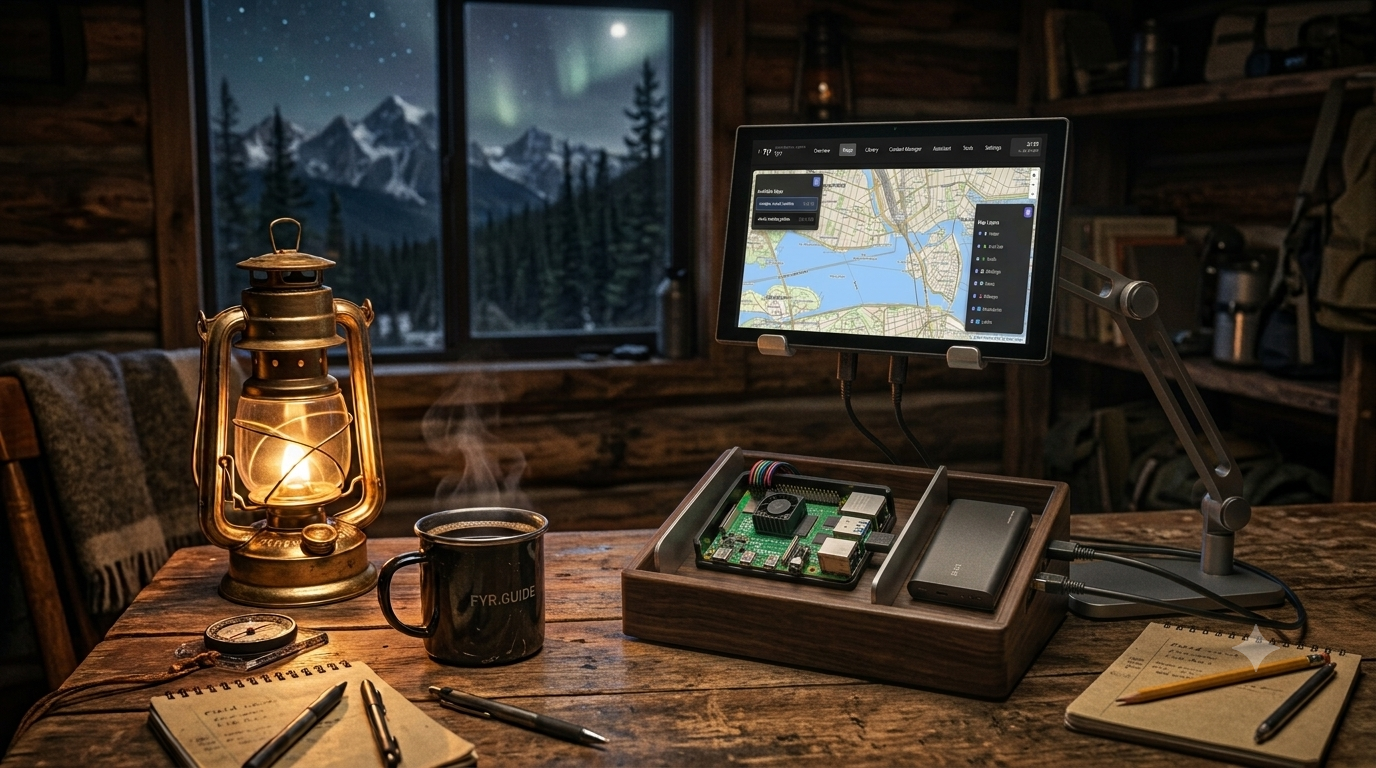
Fyr helps you preload maps, encyclopedias, books, and practical utilities for off-grid use. Run it on a Raspberry Pi, homelab, or Linux host, and add optional on-device AI inference so your system stays useful when the internet goes down.

Everything you need, completely offline.

Access and manage a vast library of knowledge from a single local interface.

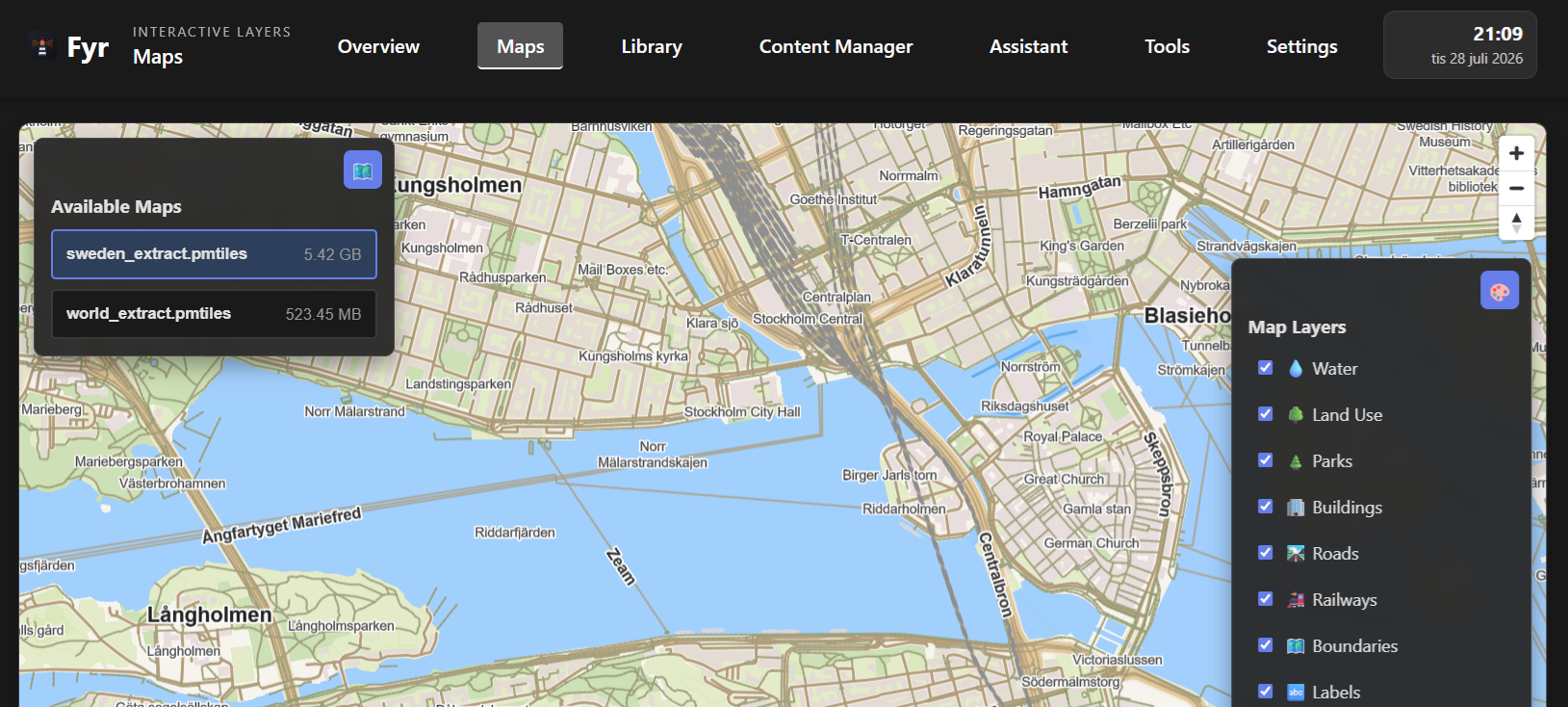
Offline Maps

Render vector and raster maps locally using PMTiles and MBTiles, with absolutely no external tile server required.

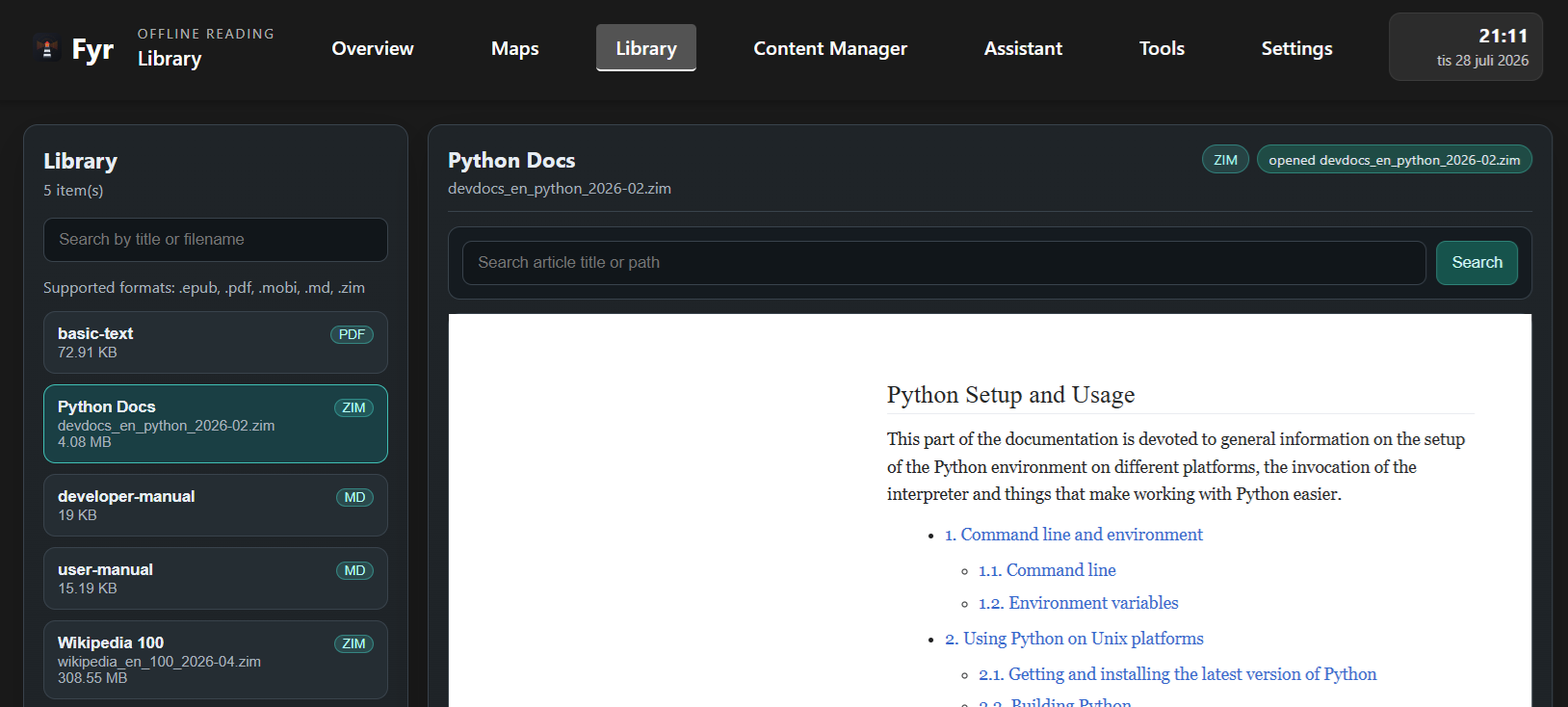
Native Library

Read EPUB, PDF, Markdown, and ZIM files (Wikipedia & Kiwix-format) entirely on-device. Download maps, books, and AI models directly from the UI.

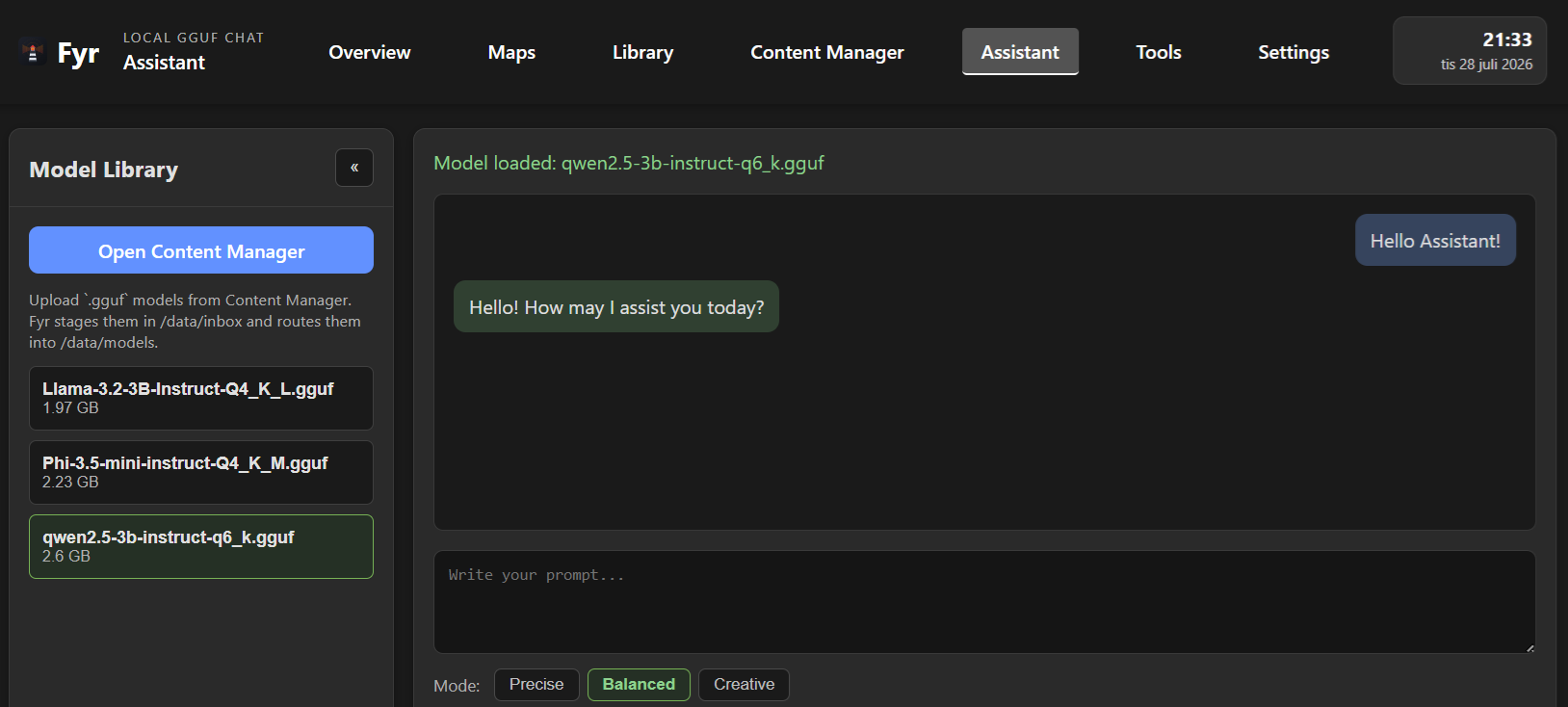
Local AI Assistant

Chat with local GGUF language models — Qwen, Llama, Phi, and more — without sending a single byte to the cloud. No GPU required; runs on CPU on any hardware including Raspberry Pi.

Private by Design

No accounts, no subscriptions, no telemetry. What you read, search, and ask stays inside your own network — always.

Raspberry Pi Ready

Native linux/arm64 support. Deploy Fyr on a Raspberry Pi and optionally turn it into a standalone Wi-Fi hotspot for fully off-grid access. See the guide →

Serve Your Whole Network

Bind to your LAN or turn a Raspberry Pi into a Wi-Fi hotspot. Every device on the network gets access to maps, books, and AI — no app installs needed.

Single Binary

Fyr is one self-contained executable. No database server, no cache layer, no extra services to install or keep running.

Designed for speed and clarity.

Explore the clean local dashboard and workspace interfaces.

http://localhost:8080
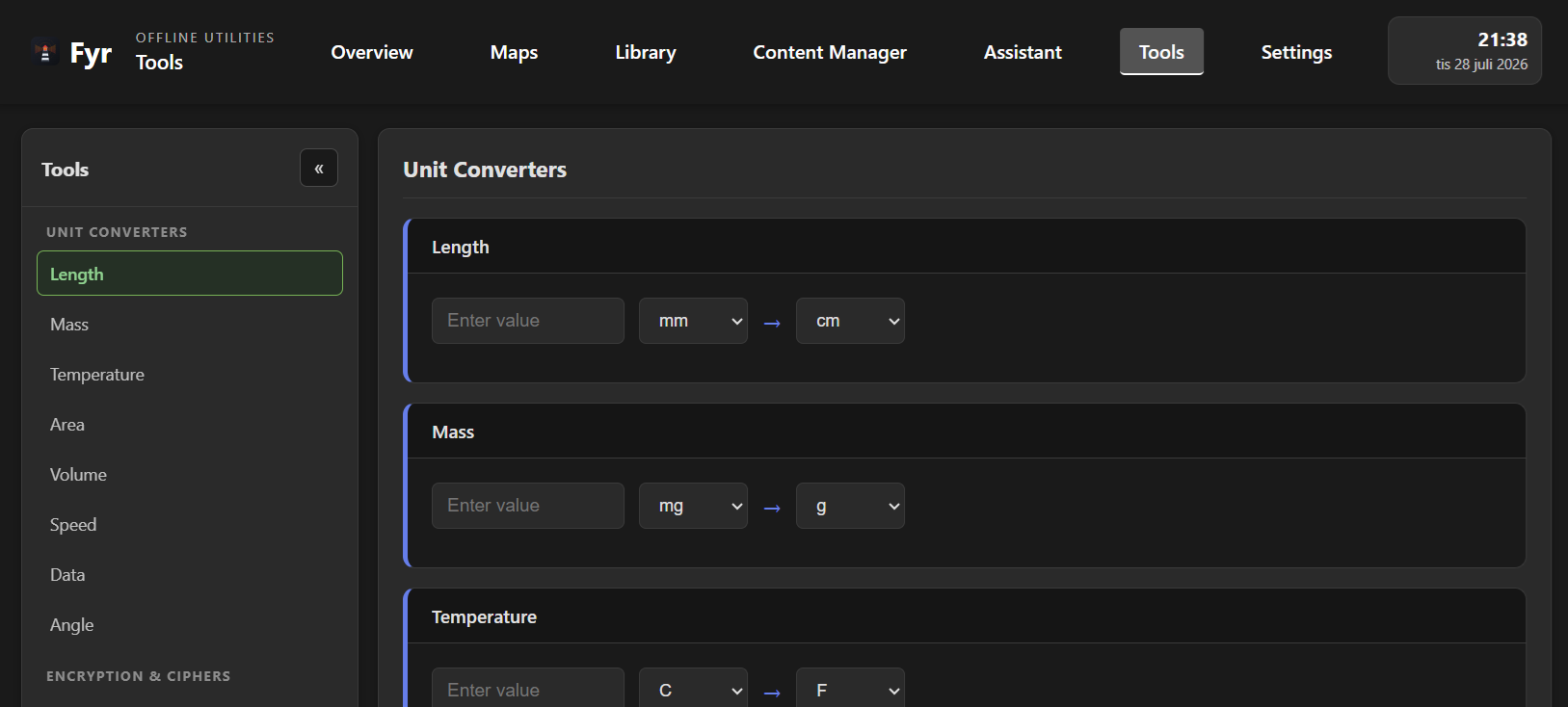
Fyr Maps Screenshot Fyr Library Screenshot Fyr Assistant Screenshot Fyr Tools Screenshot

Get Fyr Running

Choose the setup path that fits your environment.

Hosted Installer Scripts

The recommended way to install Fyr. A guided setup with persistent settings and easy upgrades.

Linux / macOS
curl -fsSL https://fyr.guide/install.sh | sh
Windows PowerShell
irm https://fyr.guide/install.ps1 | iex

Open http://localhost:8080 in your browser to begin.

🚀 Upgrade to a new version

The installer persists your settings (port, data directory, admin password) in ~/.config/fyr/install.conf (Linux/macOS) or %APPDATA%\fyr\install.conf (Windows). To upgrade, just add update:

curl -fsSL https://fyr.guide/install.sh | sh -s -- update
irm https://fyr.guide/install.ps1 | iex; Install-Fyr -Update

⚙️ All installer arguments

Argument Linux / macOS Windows Default Description
Tag latest / dev / v1.2.3 / legacy / pc-legacy / rpi-legacy -Tag latest Docker image tag. Default tags are optimized.
Update update -Update Recreate container, preserve data
Data dir --data-dir -DataDir Bind-mount host path
Data volume --data-volume -DataVolume fyr-data Named Docker volume
Port --port -Port 8080 Host port
Admin password --admin-password -AdminPassword Enable admin mode
Read-only --readonly -ReadOnly Strict read-only mode
Legacy shortcut --legacy / --pc-legacy / --rpi-legacy -Legacy / -PcLegacy / -RpiLegacy Switch to compatibility-first legacy tags

Run with --help (Linux) or -Help (Windows) to see this in the terminal.

🧯 Legacy hardware shortcuts

curl -fsSL https://fyr.guide/install.sh | sh -s -- --legacy
irm https://fyr.guide/install.ps1 | iex; Install-Fyr -Legacy

Use --pc-legacy / -PcLegacy or --rpi-legacy / -RpiLegacy when you want to force a specific legacy image family.


Manual Docker Run

Prefer to control the container directly? Use the raw docker run command.

Terminal
docker run -d --restart unless-stopped --name fyr \
  -p 8080:8080 \
  -e FYR_HOST=0.0.0.0 \
  -e DATA_DIR=/data \
  -v fyr-data:/data \
  hexagon/fyr:latest

🔧 What each flag does

  • -d --restart unless-stopped --name fyr — Run in detached mode as a persistent service that restarts automatically on boot.
  • -p 8080:8080 — Map host port 8080 to the container's port 8080.
  • -e FYR_HOST=0.0.0.0 — Bind to all network interfaces so other devices on the LAN can connect.
  • -e DATA_DIR=/data — Set the data directory inside the container.
  • -v fyr-data:/data — Persist all content (maps, books, models, downloads) in a named Docker volume.

📦 Environment Variables

Variable Default Description
FYR_HOST 127.0.0.1 Bind address (use 0.0.0.0 for LAN access)
FYR_PORT 8080 Listening port
DATA_DIR ./public/data Content storage path
FYR_ADMIN_PASSWORD Enable password-protected admin mode
FYR_READONLY Set to true for strict read-only mode

💾 Data Persistence Options

Fyr stores all user data in DATA_DIR (/data in the container). Choose one of these strategies to keep data across container restarts:

Named volume (simplest):

-v fyr-data:/data

Host bind-mount (direct filesystem access):

-v /path/to/fyr-data:/data

Windows bind-mount:

-v C:\fyr-data:/data

🏷️ Image Tags

  • hexagon/fyr:latest — Stable production image, optimized by default.
  • hexagon/fyr:dev — Development/testing image, also optimized by default.
  • hexagon/fyr:legacy — Stable multi-arch legacy build for maximum compatibility.
  • hexagon/fyr:pc-legacy — Generic x86_64 build for older PCs without AVX2/FMA.
  • hexagon/fyr:rpi-legacy — Generic arm64 build for older Raspberry Pi-class hardware without dotprod.

Default tags are optimized for newer CPUs and can fail on older hardware with illegal instruction errors. Use legacy, pc-legacy, or rpi-legacy when you need broader compatibility.

🐧 Linux bind-mount permissions

On Linux-based systems, if you use a host directory bind-mount instead of a named volume, ensure the directory is writable by the container's user (UID 1000):

sudo chown -R 1000:1000 /path/to/fyr-data

Frequently Asked Questions

Can Fyr run fully offline?

Yes. Fyr is designed for offline-first operation. Once your content is downloaded, maps, books, local AI models, and utilities can be used without internet connectivity.

Does Fyr work on Raspberry Pi?

Yes. Fyr supports linux/arm64 and is suitable for Raspberry Pi 64-bit deployments, including standalone hotspot-style setups for off-grid access.

Can Fyr read ZIM archives like Wikipedia dumps?

Yes. Fyr includes native ZIM parsing for Kiwix/Wikipedia-style offline archives, alongside EPUB, PDF, and Markdown reading support.

Is my data sent to cloud AI services?

No. Fyr’s local AI workflow is built around on-device GGUF models, so prompts and data can stay inside your own network.

What content can I load into Fyr?

OpenStreetMap vector and raster tiles (PMTiles and MBTiles), Wikipedia and Kiwix ZIM archives, Project Gutenberg and other EPUB books, PDF and Markdown documents, and GGUF language models (Qwen2.5, Llama 3.2, Phi-3.5, and others). Fyr includes a curated catalog to help you get started.

Can multiple devices on my network use Fyr at the same time?

Yes. Bind Fyr to your LAN interface (FYR_HOST=0.0.0.0) and any phone, tablet, or laptop on the same network can access it through a browser — no app installs required. On a Raspberry Pi you can also set up a standalone Wi-Fi hotspot so devices connect directly.

Full Documentation

Use the docs below for role-specific guidance. Fyr is currently in preview, so check docs with each upgrade.